Tags
Overview
A user may add one or more custom tags to any item, allowing those items to be grouped together. The tag can be searched for in the search bar or filtered on in the filter section.
To add a tag, type into the Tags input box on any item. Existing tags will appear in a drop-down, but you can create a new tag by selecting Add... or pressing return after typing a tag name:
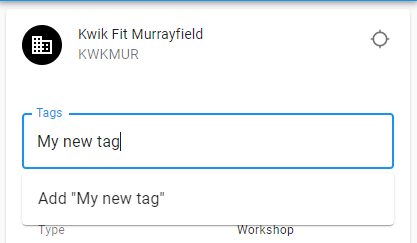
Please Note: The following characters must not be used in the tag name, triggering an 'Invalid characters' message: \ / %
Multiple tags may be added:
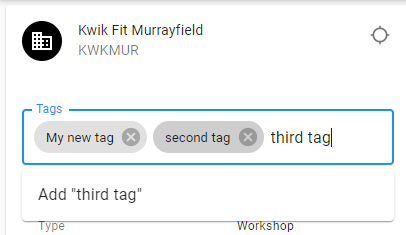
...and can be removed by clicking on the X next to the tag.

To view items under individual tags there is a tag option in the toolbar:

... which will show all the tags currently used:
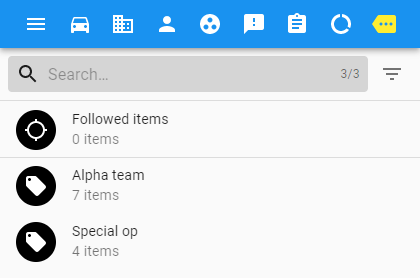
... and clicking one will show the items which have that tag applied:
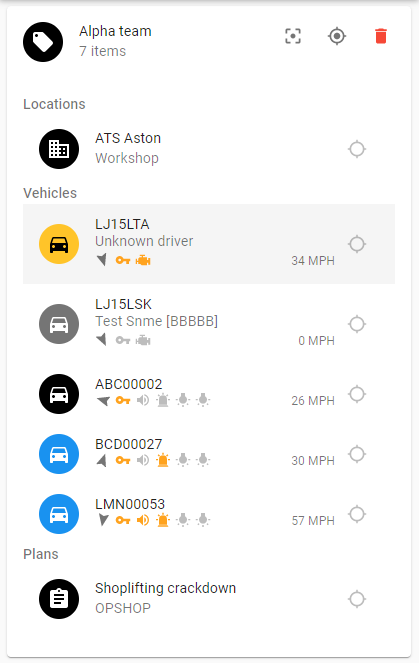
As with the resources assigned to an incident, tagged items may be focused and/or followed.
Focusing applies a temporary filter to all the tagged items while the tag is selected:
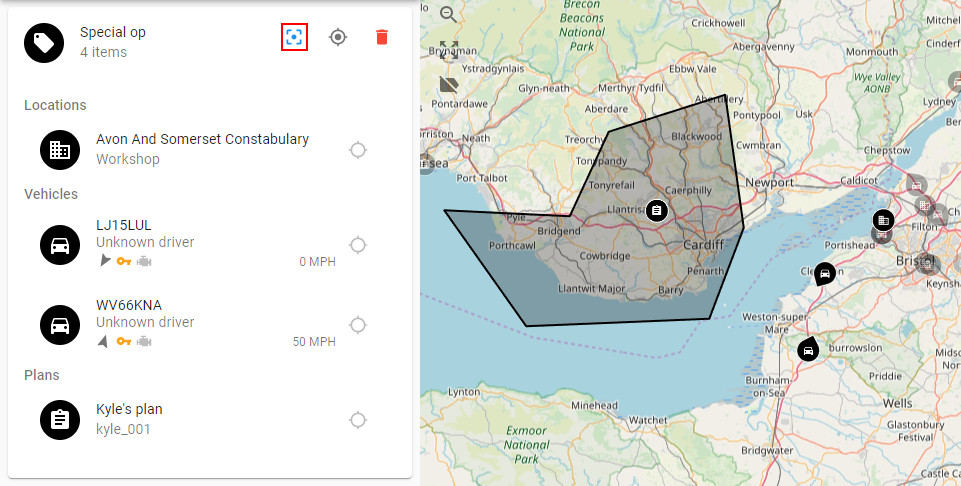
... and all the tagged items can be followed in one go by clicking the follow all button:
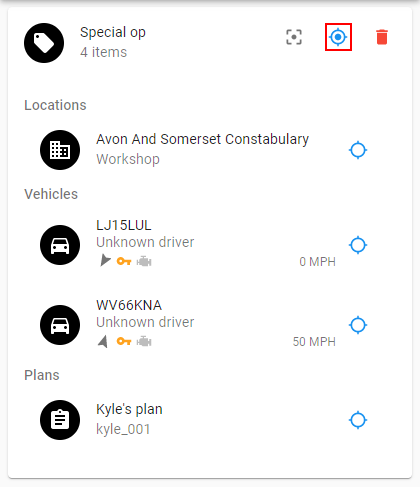
A tag may be deleted (i.e. removed from every item that has that tag) by pressing the delete button:

... after deleting, as the tag no longer exists on any item it will not appear in the list of tags.
Followed items tag
At the top of the list of tags there is a permanent tag for followed vehicles: .
.
Any item that is currently being followed will be listed here:
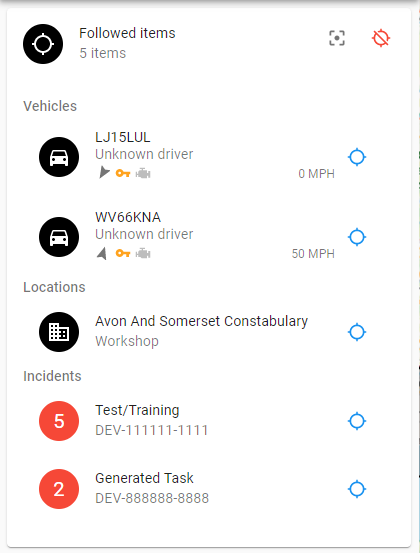 .
.
As with tags, followed items may be focused on by pressing the focus button.
An individual item may be unfollowed by deselecting the follow icon next to the item, or all items may be unfollowed by clicking the unfollow all button:
