Live FAQs
Please advise LBA of additions to this section.
Searching methods
The search bar provides the ability for free text search (case insensitive) of the objects and their attributes, depending on the context.
In the example below, as Live Vehicles page is displayed, vehicle attributes containing "un" discovers 257 out of a total of 1096 vehicles that meet the search requirement, namely "Unknown" & "Unrecognised" in the Driver field, plus vehicles where the Role was set to "Delivery Unit" (visible by selecting the vehicle).
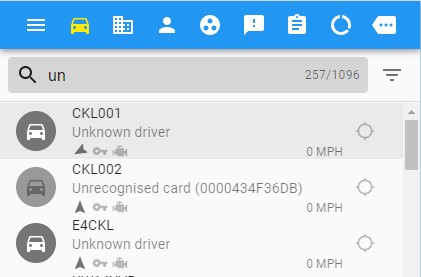
The list of vehicles is updated as you type in the search string.
Either delete the search string or click on the "x" within the search bar (when the cursor is hovering over the box) to return to the full results set.
Alternatively, use filtering to select combinations of single or multiple attribute values. How to use filtering is described in section 5.
The fields available to filter on are grouped. For example, possible filtering options for vehicles are (depending on system configuration):
- Vehicle: Area, BCU, Colour, Command, Department, Directorate, District, Equipment, Fleet Number, Home Station, Make, Model, Region, Registration Number, Role, Status, Tags, Team, Type
- Telematics: Blues and Twos, Ignition, IMEI, Last Ignition Off Time, Last Poll Time, Malfunction Indicator Light, Rear Blues, Rear Reds, Siren, Speed
- Driver: Area, BCU, Category, Collar Number, Name, Operation, Role, Sector, Skills, Specialist, Team
- Assignments: Call Sign, Incident
- Current Locations: Base, Force Boundary, Workshop
The major advantages with filtering over searching are:
- the ability to combine a number of fields / values
- display & selection from a list of the available values for each field (so you don't have to remember the exact value)
- selecting associated fields (e.g. driver related fields for a list of vehicles)
Difference between unrecognised & unknown
The above search for "un" within the Live Vehicles page lists vehicles with Unknown drivers or those with Unrecognised cards (amongst others).
A vehicle is shown to have an Unknown driver if IR3 has no association between the user & vehicle, which is usually due to the driver failing to swipe in their RFID card.
A vehicle is shown to have an Unrecognised card if IR3 has no record of the RFID card used to swipe in, which is usually due to the driver using an incorrect RFID card. For example, a driver presents their wallet containing their registered RFID card, but the RFID reader picked up on their Tesco club card contained within the wallet instead.
Locating closest available resources
First, select the appropriate area on the Live page map.
- The incident may be selected, if fed through to IR3, and then use the Fit function to zoom in,
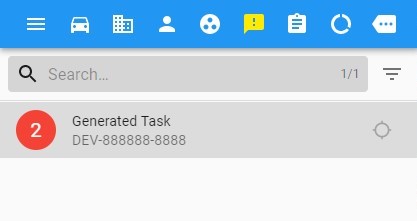
- or a geo-fenced location may be selected, if previously defined within IR3, and then use the Fit function to zoom in,
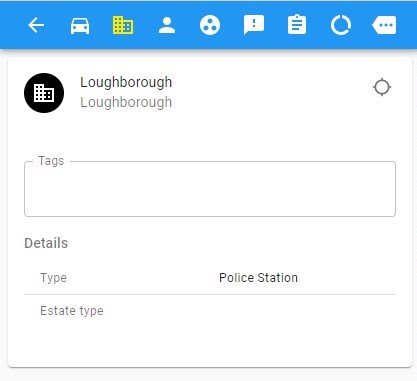
- or manually manipulate the map to display the area of interest.
Next, select the appropriate available resource.
- Filter resource (either vehicle or people) by Assignments, where the call sign field has the appropriate value,
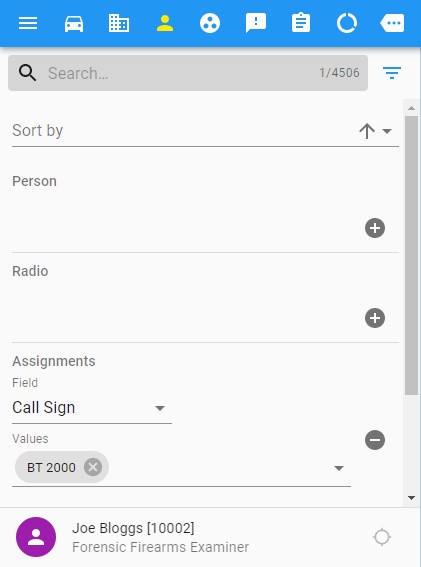
- or select resource by listing vehicles or people by call signs.
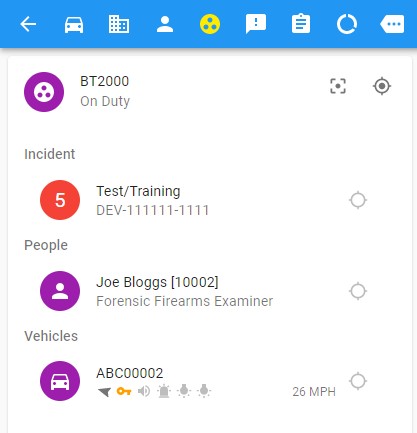
Zoom out/in on the map until the logical choice is displayed, and select the resource on the map to display the details on the left hand side of the screen.
Stale vehicle locations
A stale vehicle location is defined as:
- the location of a vehicle, which had it's ignition on when the IR3 system last heard from it, over an hour ago
- tthe location of a vehicle, which had it's ignition off when the IR3 system last heard from it, over 7 days ago
The time periods above are configurable.
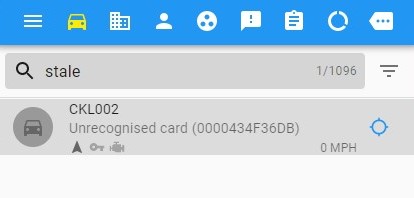
To highlight stale vehicle locations, search for ‘stale’ in the free text field. Select a vehicle, and use the Fit function to zoom in on it.