Sorting And Filtering Options
Overview
If you select the filter button to the right of the search bar, the filter selection section appears allowing more control over narrowing down features of interest. The list of features may be sorted by a property of the feature, or filtered with multiple filters from each of the subsections of the feature (e.g. Telematics or Driver):

Sorting
Clicking on the Sort by dropdown shows a list of options to sort the results by, and to toggle between sorting in ascending or descending order click the arrow to the right:

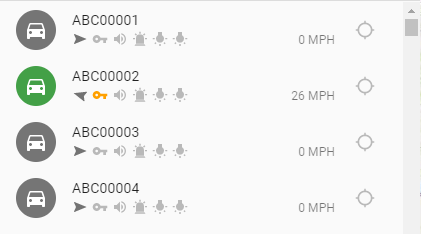
The list will update to be sorted by the option chosen:
Filtering
To add a filter, click the plus sign:

A new filter is added to the list of filters and it has a field dropdown and a value input. Multiple filters can be added by clicking on the plus sign at the end of the filter subsection.
The field dropdown selects the property to filter, and the value input is for the desired values to match on:

When a field is chosen, possible values can be chosen from the value input. The value input can take several forms depending on the field chosen.
For instance, when Ignition is selected the possible values are Off or On:

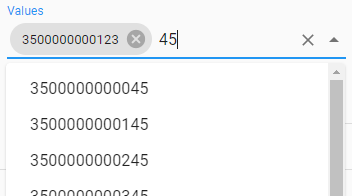
If IMEI were chosen, the value input becomes a multiple selection input, allowing more than one option to be matched against. A dropdown list shows the available options (which can be narrowed down by typing some text), and selected options are appended to the values box. Selected options can be removed by clicking the x next to the option. Here the IMEI 3500000000123 is already chosen, and to pick the next IMEI "45" narrows the list of options down to IMEIs that contain "45":
For a feature to match a multiselect, its property must have at least one of the values in the filter. So, if 350000000013 and 3500000000314 were selected, for a feature to be filtered in its IMEI must be either 350000000013 or 3500000000314:

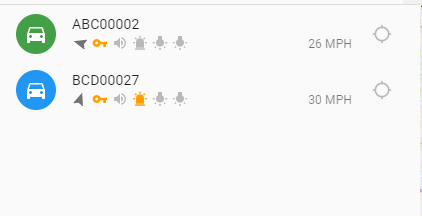
... the first vehicle has an IMEI of 350000000013 which matches one of the filter values, so it appears in the filtered list. Similarly, the second vehicle has an IMEI that matches the other filter value and so both appear in the filtered list:
If a filter with a numeric value like speed is chosen, a few more options are available if the equals symbol is clicked:

This allows the speed of a vehicle to be compared to a value with some simple math operators. For example, if you were to choose the ≥ operator (for greater than or equal to) and 30 mph, the list would be filtered to items that have a speed greater than or equal to 30 mph.

The currently available operators are:
| Symbol | Meaning |
|---|---|
| = | equal to |
| ≠ | not equal to |
| > | greater than |
| ≥ | greater than or equal to |
| < | less than |
| ≤ | less than or equal to |
If a filter with a date value is chosen, such as Last Poll Time, a calendar appears to allow choice of day. Like the speed filter, operators allow choices like less than or greater than a particular date:

To remove a filter, click the minus button to the right of the filter:

Filter combinations
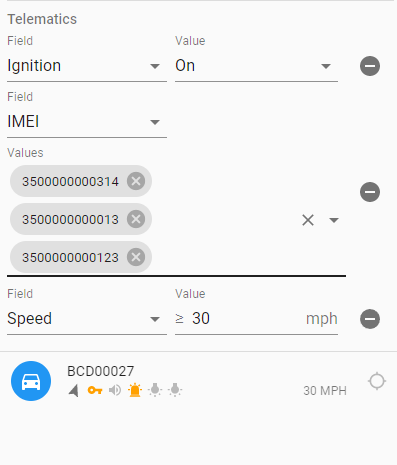
With several filters chosen, the list will only show matches that match every filter. For example, when filtering for
- ignition on
- AND an IMEI of 350000000013, 350000000123 or 350000000314
- AND speed greater than or equal to 30mph
Only one vehicle matches all these criteria:
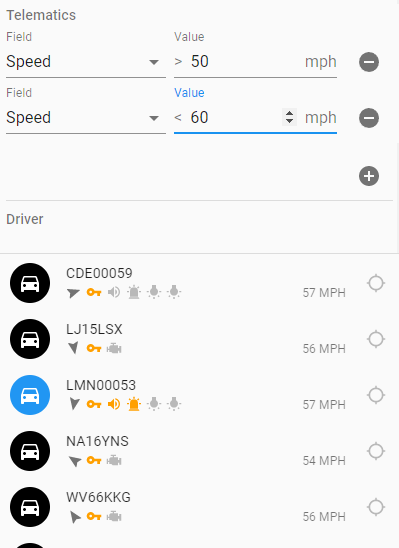
Some filters may be combined to filter a range of values, such as speed greater than 50 AND less than 60:
Impossible filter options
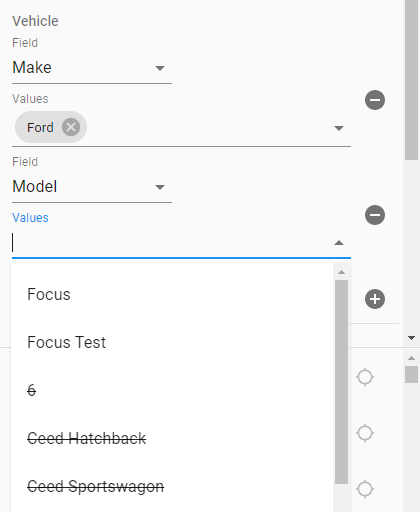
Selecting some filter options may make other filter options invalid, for example if you select a vehicle make of Ford, valid options for the model filter would only be Ford models such as a Ford Focus. Other models are crossed out (but still selectable):
The reason they are still selectable instead of removed entirely is that it is possible to invalidate other filters before finishing a filter selection; if you were to choose Ford and Mazda as makes, then choose 6 as a model, the Ford option is now invalid as there are no Ford 6s:
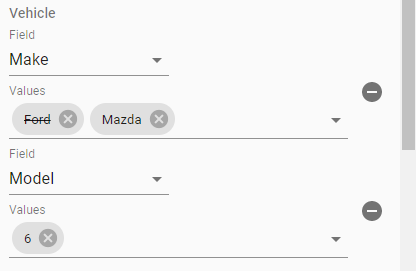
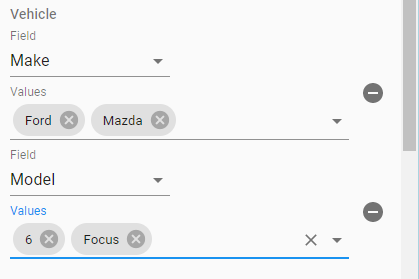
The Ford option is still selected as a make (not removed) but crossed out indicating that it is currently an invalid filter option. In the drop down for models, Focus is a valid model selection (as the Ford make is chosen) and once this make is chosen the Ford make becomes valid again (you can have a Mazda 6 or a Ford Focus) and is no longer crossed out:
Filter match count
Like the search bar, filtering will affect the number of matches shown to the right of the search bar:

Clearing all filters
All filters can be cleared by clicking on the icon to the left of the view control on the top:

Call sign uses people and vehicle filters
The Call Signs tab will adhere to the filters used in the People and Vehicle tabs. For example, filtering by the District "D 1" in the Vehicles & People tabs:
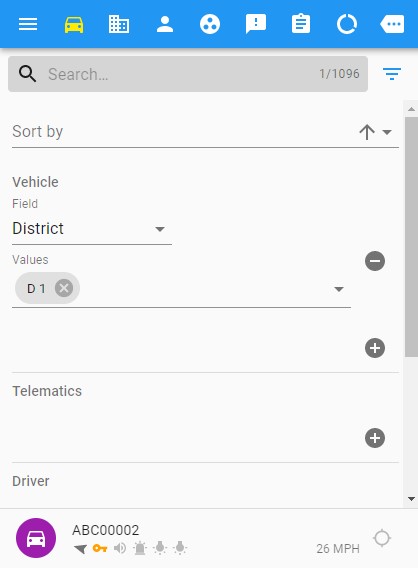
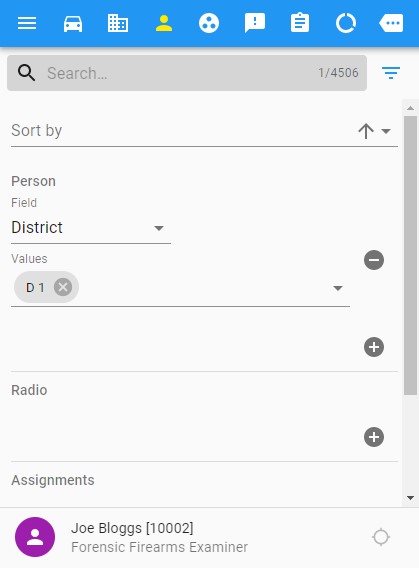
... displays only the call signs with vehicles & people in District D 1 on the Call Signs tab (in this case reducing the number of call signs displayed to 1 instead of 3).
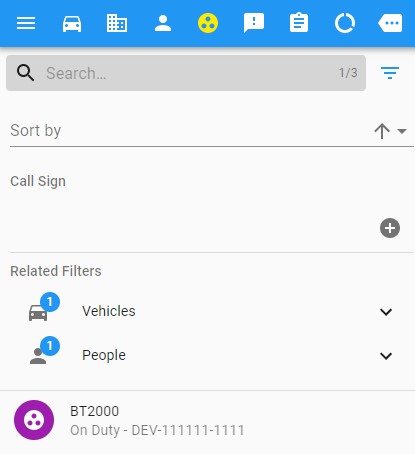
The Related Filters sections shows the associated vehicle and people filters that the Call Signs used:
