Feature List
Overview
The feature list at the bottom of the list section shows the individual features which may have been filtered or sorted by the filter section.
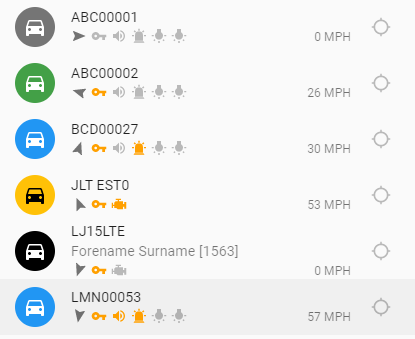
Each item may be coloured according to the item's status (the following is for vehicles and incidents, people follow the same scheme as vehicles excluding the parked, equipment and engine statuses):
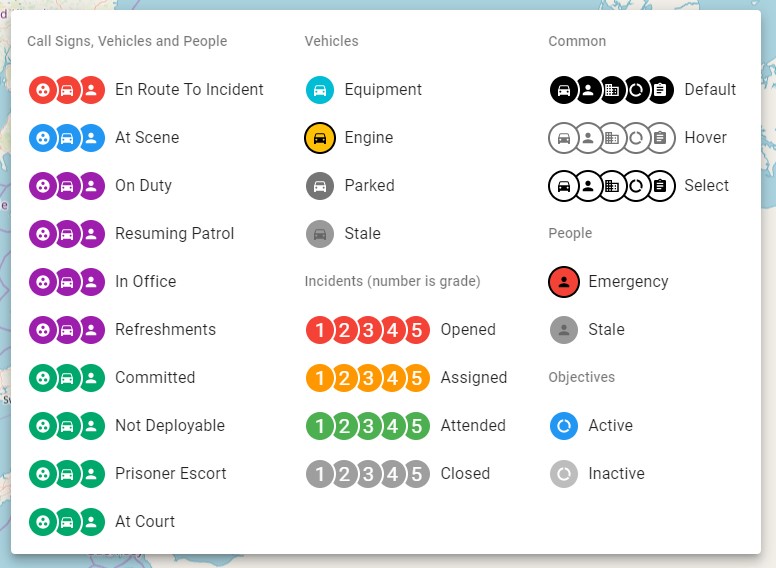
The status may also be obtained by hovering over the item's icon:


Vehicles features may have additional information shown in the list compared to other features such as the driver and speed:

Vehicles may also have various inputs at the bottom indicating which are currently on or off. Inputs that are off are grey and the name of the input can be obtained by hovering over the input icon:


The arrow on the far left of the input icons indicates the vehicle's current heading.
Following features
Features can be followed by selecting the follow icon at the far right (highlighted below). Followed features will update the map whenever they move to make sure they are within the map's view. Multiple features can be followed at the same time by clicking follow on each feature you want the map to follow.

Example:
Here JLT EST0 and LJ15LTE are followed and the map moves automatically to ensure they are in view:
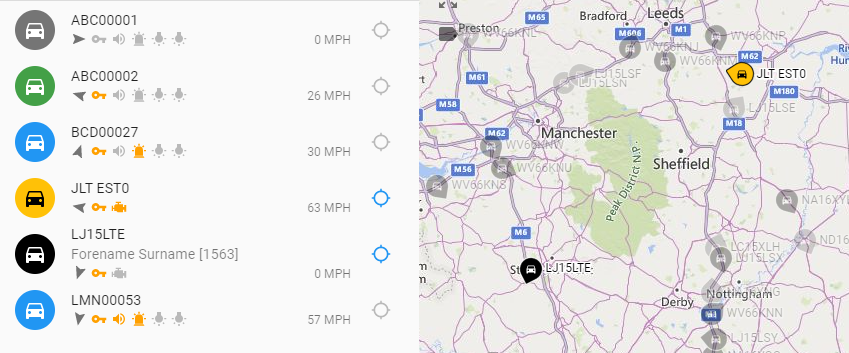
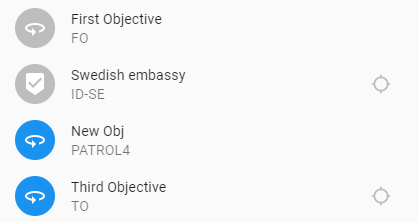
If a feature doesn't have a position or boundary, the follow icon isn't present:
All the currently followed items may be viewed in the Followed Items tag. This view also allows a user to quickly unfollow all followed items in one click.
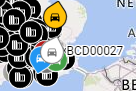
Hovering over an item in the list will highlight the resource on the map. If in the above list the item for BCD00027 is hovered over, the map will highlight the icon for that feature: