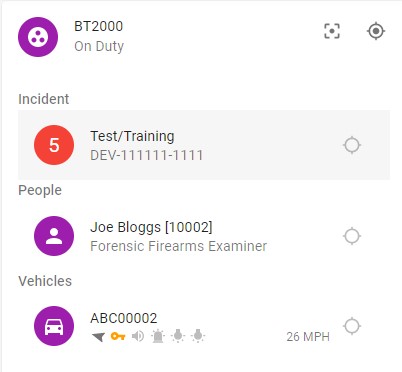
Detail View
Overview
Clicking on an item in the list will bring up the detail view for that resource. This view may have a picture of the resource and more detailed information such as any assigned call signs or incidents, or any areas the resource is a member of.
If a call sign is assigned, a call sign row is present and clicking on it will navigate to that particular call sign which may have other resources assigned to it.
Similarly, if there is an assigned incident it may be clicked to view the detail for that incident. If the incident is older and not currently on live, it will be loaded in the background and added when retrieved.
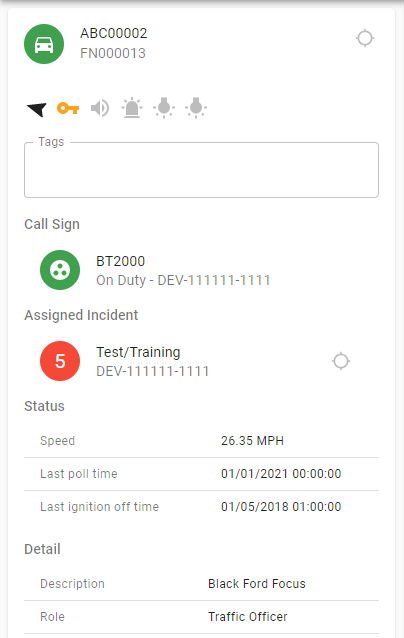
As with the list view, the detail view also has icons depicting the state of the inputs:

... and there is a follow button in the top right:

The details shown for each type of resource will differ to be relevant for that type.
The detail view for plans has some extra functionality so this will be detailed next.
Focus and follow all
The incident, call sign and tag features can have other features associated and the detail view lists these and allows focusing and following/unfollowing all their associated features.
For example, the incident detail shows information about the incident, a timeline and can list any currently assigned resources:
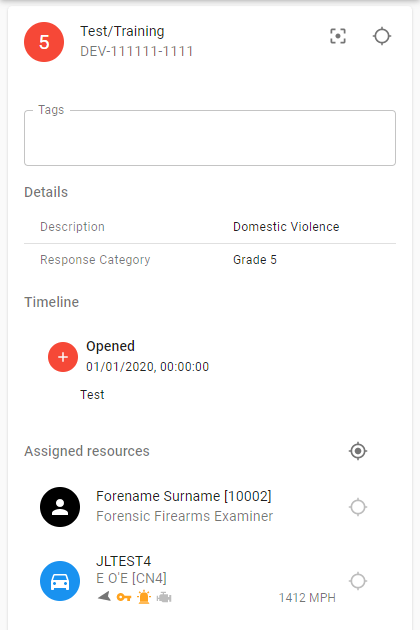
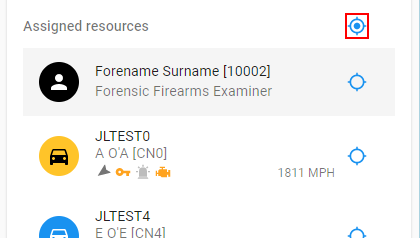
Hovering over the assigned resources will highlight them on the map, and clicking on any assigned resource will bring up the detail view for that resource.
The incident and all the associated resources can be focused by clicking the focus button in the top right:

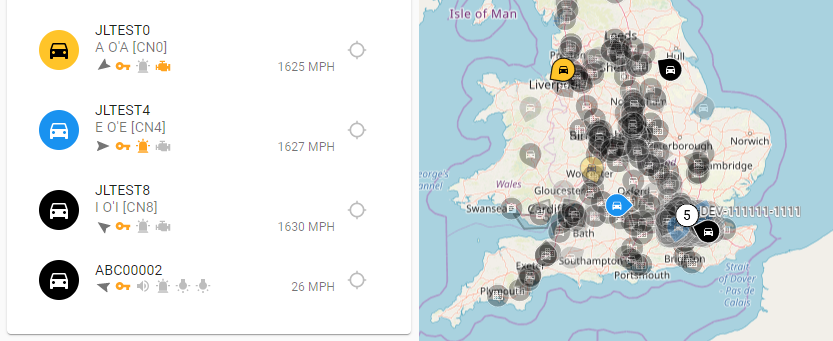
Navigating away from the incident will unset the focus on the incident's associated resources and the previous filter values before the incident was focused will be restored.
All the incident's resources may be added or removed to the followed items by selecting the follow all button:
The full list of followed items can be viewed and unfollowed on the Followed Items tag too.
The call sign and tag detail views offer similar functionality but as they only exist as a collection of other features (and not a separate entity like an incident) the follow button in the top right is replaced with the follow all button: