Login
Overview
The login control is present on the top right corner of most screens. When logged in the user icon is highlighted or an avatar, which contains the user’s initials if associated with a person within IR3.

Logged In

Logged Out
When auto-login is not enabled the user logs in to the application by clicking on the avatar. A menu will popup with a single menu item.

Clicking on this item will redirect the user to the ADFS or Azure AD authentication screen. Depending on how the client has configured this the user will either have to enter their username and password or their credentials will automatically be picked up.
Upon completion of the authentication the user is redirected back to IR3 along with a token containing the user’s credentials including their AD groups. These credentials are then stored in local storage. These credentials come with a expiry date which is determined by AD. When that expiry date is hit the user will be automatically logged out of IR3.
If the user wishes to logout they again click on the avatar and choose the menu item.
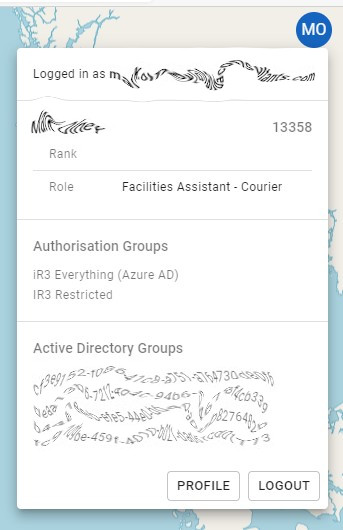
Once that menu item is pressed or the credentials have expired then the credentials in local storage are deleted and the user is sent back to the home screen.
Customisation
For clients running the system on-premise they can choose to either require the user to click login or they can choose to have the user automatically login.
For clients using our Azure AD we can configure life of the token to fit their requirements.